Accessibility testing
Testing Website Accessibility: a Step-by-Step Approach
The best way to test your website's accessibility is a combination of an automatic scan and manual checks. In these steps you learn what to do when, and which problems occur most often.
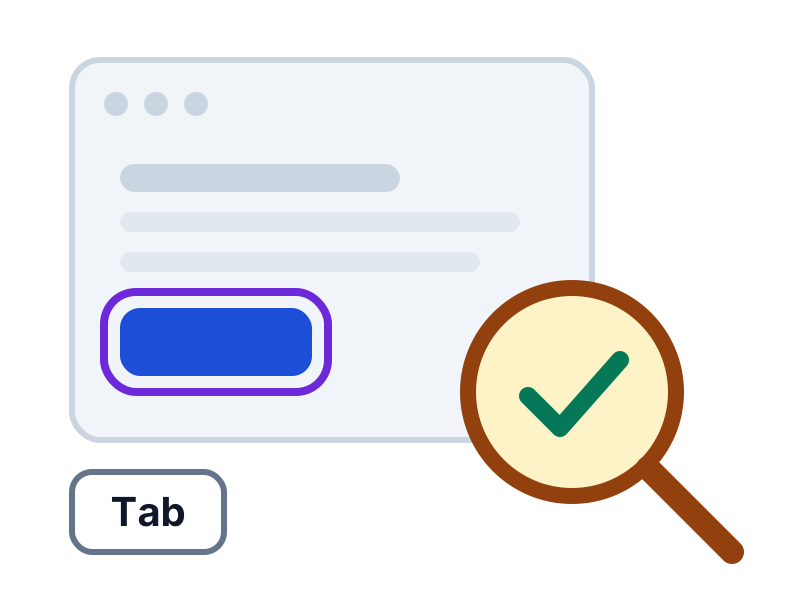
Why a combination of tests delivers the most
Automatic tests quickly find problems a computer can measure, such as missing alt text, too little contrast or fields without a label. AI content analysis also assesses whether texts are meaningful, such as an alt text or link text that says something instead of 'image' or 'click here'. Manual testing gives the complete picture, for example whether a page is easy to follow and a form is pleasant to fill in.
With automatic tests, AI analysis and manual tests you get a complete picture of what visitors with a disability experience, and you know where improvements deliver the most.
Step-by-step plan for testing your website
Go through the steps per page or process. Start small and repeat regularly.
Decide what to test
Choose a representative selection: the home page, a content page, a form, a product page, the login page and the ordering or request process. Test complete processes, not only individual pages.
Tip: Start with the pages with the most traffic or the most important goals.
Start with an automatic scan
A scan, such as AccessRadar's free WCAG check, quickly finds common problems such as missing alt text, too little contrast and fields without a label. With AccessRadar's improvement plan, weekly scans and AI content analysis are added.
Tip: Never regard a clean scan as proof that the page complies.
Test with the keyboard
Go through the page without a mouse. The checks are listed below in their own section.
Test with a screen reader
A screen reader reads the page aloud and shows how the structure, headings, labels and messages come across. Common options are NVDA on Windows, VoiceOver on Mac and iPhone, and TalkBack on Android.
Tip: Listen to whether headings, link text and buttons are still clear without the visual context.
Test zooming and small screens
Zoom the page to 200% and check that all text stays readable. Then zoom further to 400% and check whether you can read without scrolling horizontally.
Tip: Also test in portrait and landscape orientation on a phone or tablet.
Test colour and contrast
Measure the contrast of text, icons and input field borders with a contrast tool. Also view the page in greyscale to see whether information is conveyed by colour alone.
Test forms and error messages
Fill in a form incorrectly on purpose. Are the errors named in text, shown next to the field, and do you know how to fix them?
Record findings and prioritise
For each finding, note the page, the WCAG criterion, the impact and the fix. Solve problems that stop visitors from continuing first.
Tip: A finding that blocks a checkout process goes before a small contrast problem in the footer.
Test again after every change
Accessibility is not a one-off project. New content, a new theme or an update can cause new problems.
Tip: Schedule recurring scans so you notice new problems quickly.
Testing keyboard navigation
You find many accessibility problems with just a keyboard. Put your mouse away and go through these checks.
- Use Tab and Shift+Tab to move forwards and backwards, Enter and the space bar to activate, the arrow keys within menus and tabs, and Escape to close something.
- Can you reach and operate every link, button, form field and menu?
- Can you always see where the focus is, and is it not covered by a sticky header or cookie banner?
- Does the order follow the logical reading order of the page?
- Can you get out of every window, menu or component with the keyboard, without getting stuck?
- Does the 'Skip to content' link at the top of the page work, and does it become visible when it receives focus?
Common accessibility problems
You see these problems on many websites. They are often quick to find and easy to fix.
Too little colour contrast
Light grey text on a white background, or white text on a light button, is hard to read for many visitors.
Tip: Check your brand colours with a contrast tool. Regular text needs at least 4.5:1.
Images without alt text or with poor alt text
Without alt text, the image stays invisible to screen reader users. 'Image1.jpg' or a long list of keywords does not help either.
Tip: Read only the alt texts. Can you still understand what the page is about?
Form fields without a label
Example text in a field (a placeholder) disappears as soon as you type and is not seen as a label by all assistive technology.
Tip: Use a visible label linked to the field for every field.
Links and buttons without a clear name
'Click here', 'Read more' and buttons with only an icon do not say what happens.
Tip: Ask a screen reader to list all links and see whether they can be understood without context.
Invisible focus or a keyboard trap
A focus outline removed in the design, or a window you cannot escape from, makes a site unusable without a mouse.
Tip: Tab through the page and watch the focus.
Missing or illogical headings
Headings used only for layout or skipping levels make navigating with a screen reader difficult.
Tip: View the page's heading structure as a table of contents.
Content that does not reflow when zoomed
At 400% zoom, text disappears or you have to scroll horizontally to read a line.
Tip: Make your browser window as narrow as a phone and check that everything stays readable.
How tests, AI analysis and manual testing complement each other
This is how you divide the work and get the most from each method.
| Topic | Automatic tests | AI content analysis | Manual assessment |
|---|---|---|---|
| Alternative text | Images without alt text | Whether the text is meaningful and not 'image' or a file name, with suggestions | Whether the text truly fits the image |
| Colour contrast | Contrast of text on a flat background | Not applicable | Contrast on images, gradients and icons |
| Forms | Fields without a label | Whether labels and instructions are clear | Whether the form works well in practice |
| Links | Links without text | Whether the link text, together with the text around it, makes clear where the link leads | Whether the link makes sense in context |
| Keyboard and focus | Limited checks on focus and keyboard operation | Not applicable | Whether everything can be operated and the order is logical |
| Headings | Skipped heading levels | Whether headings describe the topic and are not empty words such as 'Info' | Whether the structure as a whole is right |
From test result to improvement
Use the results as a starting point and work through the findings, beginning with what affects the most visitors. For important websites, involving an accessibility expert or people with a disability gives extra certainty.
Automatic tests and AI content analysis
AccessRadar combines automatic tests with AI content analysis. You see not only technical errors, but also which texts truly help your visitors.
The AI analysis reads the text of your pages and gives suggestions, for example for:
- Alternative text: does the text say something meaningful, or is it 'image', a file name or 'click here'?
- Link text: do the link text and the text around it make clear where a link leads?
- Headings and labels: do they describe the topic or the field, or are they empty words such as 'Info' or 'Field 1'?
- Page titles and forms: is it clear what a page is about and what a field expects?
You get concrete suggestions for better texts, which you pick up directly in your weekly improvement plan. This way your website moves closer to WCAG 2.2 AA suitability every week and reaches more customers.
Read how tests and AI analysis work together in the improvement plan
Read also
Practical explanations of WCAG and digital accessibility.
WCAG 2.2 AA Checklist: What Should You Check on Your Website?
A practical WCAG 2.2 AA checklist per category, with explanations and tips to improve right away. Useful for owners, editors and developers.
Keyboard Accessibility: Make Your Website Work Without a Mouse
Does your website work without a mouse? Read which WCAG requirements apply to keyboard operation and focus, how to test yourself and how to fix common problems.
Accessibility Statement: What Goes In It and How to Write One
What is an accessibility statement, who needs one and what goes in it? Read how to write one step by step and keep it up to date.
Check your website for WCAG for free
Request the free WCAG check from AccessRadar and receive the results of an automatic scan by email, as a starting point for your improvements.
Want to keep going every week afterwards? The WCAG improvement plan adds weekly scans and AI content analysis.
A WCAG scan supports your assessment. An automated WCAG scan cannot establish full WCAG 2.2 AA compliance. Combine regular WCAG scans with manual evaluation and feedback from people with disabilities.
Frequently Asked Questions About Testing Accessibility
Can I test my website's accessibility for free?
Yes. You can start for free with AccessRadar's WCAG check and also test manually yourself with your keyboard, a screen reader and zoom. That gives you a starting point at no cost.
Is an automatic scan enough?
A scan is a strong start: you quickly see where your website needs improvement, and AI content analysis assesses whether alt text, link text and headings are meaningful. Manual testing complements this with, among other things, the logical order and the experience of filling in forms.
How often should I test my website?
Test after every major change and also schedule recurring scans, for example weekly. New content and updates can cause new problems.
Which screen reader is best to use?
Choose a screen reader that fits your environment, such as NVDA on Windows, VoiceOver on Mac and iPhone or TalkBack on Android. For important pages, test with more than one combination of browser and screen reader.
When should I involve an expert?
Testing yourself is a good start. For complex websites, for a formal assessment or an accessibility statement, a specialised accessibility expert is wise.