Keyboard accessibility
Keyboard Accessibility: Make Your Website Work Without a Mouse
Many visitors operate your website with the keyboard or an assistive device instead of a mouse. You will read which WCAG requirements apply to keyboard operation and focus, how to test your website yourself and how to fix common problems.
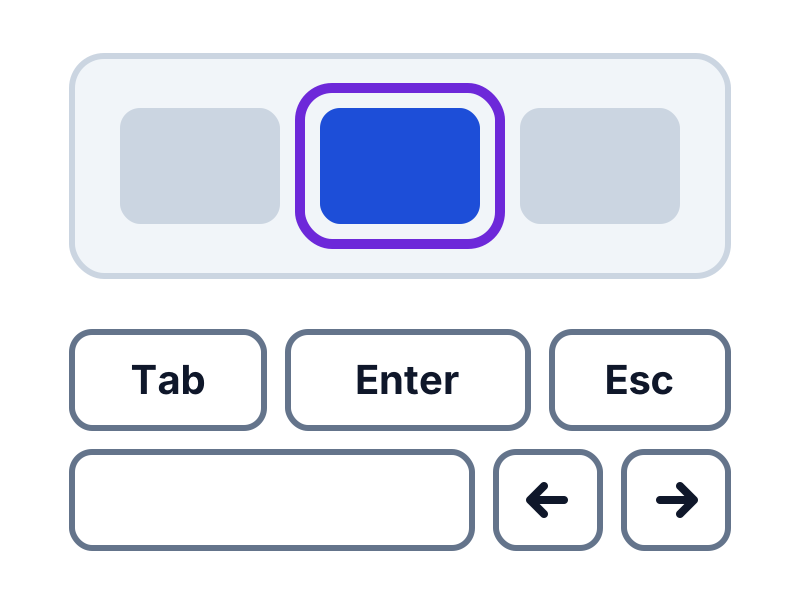
Why keyboard operation matters
People with a motor disability and blind visitors using a screen reader depend on operation without a mouse. Many assistive devices, such as switches, work through the same functions as the keyboard.
Experienced users also like to work with the keyboard, because it is faster. A website that works without a mouse is therefore more pleasant to use for a large group of customers.
The WCAG requirements for keyboard and focus
Together, these success criteria determine whether your website is easy to operate with the keyboard. They all belong to level AA, the usual target.
| Success criterion | Level | What it requires |
|---|---|---|
| Keyboard (2.1.1) | A | All functionality works with the keyboard, without requiring you to press keys within a certain time. |
| No Keyboard Trap (2.1.2) | A | You can leave every part with the keyboard again, such as an embedded video or a pop-up. |
| Character Key Shortcuts (2.1.4) | A | Shortcuts of a single letter or number can be turned off or remapped, or only work when the component has focus. |
| Bypass Blocks (2.4.1) | A | There is a way to skip repeated blocks, such as the menu, for example with a skip link. |
| Focus Order (2.4.3) | A | Focus moves through the page in a logical order that preserves meaning and operation. |
| Focus Visible (2.4.7) | AA | You can always see which component has focus. |
| Focus Not Obscured (Minimum) (2.4.11) | AA | The focused component is not entirely hidden by other content, such as a sticky header or cookie banner. New in WCAG 2.2. |
The most important keys
| Key | What it does |
|---|---|
| Tab | To the next component you can operate, such as a link, button or field. |
| Shift + Tab | Back to the previous component. |
| Enter | Follow a link or activate a button. |
| Space bar | Activate a button, check or uncheck a checkbox or scroll the page down. |
| Arrow keys | Choose within a group, such as radio buttons, a select list or tabs. |
| Escape | Close a pop-up, menu or dialog. |
How to test your website with the keyboard
Put the mouse aside
Open your website and click once in the address bar. Then press Tab to move through the page and Shift + Tab to move back.
Tip: On a Mac, first turn on the option in Safari's advanced settings to press Tab to highlight each item on a web page.
Follow the focus
At each step, check whether you can see where the focus is and whether the order is logical, usually from top to bottom and left to right.
Operate everything
Open menus, choose options and submit forms with Enter, the space bar and the arrow keys. Close pop-ups with Escape.
Note the bottlenecks
Do you get stuck somewhere, does the focus disappear behind a sticky header or jump to an unexpected place? Note the page and the component.
Test your most important tasks
Go through the tasks visitors perform most often, such as filling in a contact form or ordering a product.
Common problems and solutions
Clickable components that are not a real button or link
A block that was made clickable for the mouse only does not receive keyboard focus. Keyboard users then cannot operate it.
Tip: Use real buttons and links. They work with the keyboard and the screen reader automatically.
Invisible focus
Many websites remove the default focus outline because it does not match the design, without putting anything in its place.
Tip: Design a clear focus outline in your own brand style, with a contrast of at least 3:1 against the background.
Pop-ups that lose the focus
A dialog opens, but the focus stays on the page behind it.
Tip: Move the focus into the dialog when it opens and back to the button that opened it when it closes.
Focus behind a sticky header
While tabbing, the focused component disappears under a sticky header or banner.
Tip: Have the page scroll far enough while tabbing that the focused component stays in view below the header.
An illogical order
The focus jumps all over the page, because the order behind the scenes differs from what you see on screen.
Tip: Build the page in the same order in which you read it: from top to bottom and from left to right.
No skip link
Keyboard users have to tab through the entire menu on every page before they reach the content.
Tip: Add a 'Skip to content' link as the first link on the page, which becomes visible as soon as it receives focus.
Monitor keyboard operation every week
AccessRadar's automated tests check, among other things, whether clickable components can be reached with the keyboard, whether you get stuck anywhere, whether the focus is visible, whether the focus order is logical and whether you can skip repeated blocks. After every weekly scan you see per page what has improved and what still needs attention.
Automatic tests and AI content analysis
AccessRadar combines automatic tests with AI content analysis. You see not only technical errors, but also which texts truly help your visitors.
The AI analysis reads the text of your pages and gives suggestions, for example for:
- Alternative text: does the text say something meaningful, or is it 'image', a file name or 'click here'?
- Link text: do the link text and the text around it make clear where a link leads?
- Headings and labels: do they describe the topic or the field, or are they empty words such as 'Info' or 'Field 1'?
- Page titles and forms: is it clear what a page is about and what a field expects?
You get concrete suggestions for better texts, which you pick up directly in your weekly improvement plan. This way your website moves closer to WCAG 2.2 AA suitability every week and reaches more customers.
Read how tests and AI analysis work together in the improvement plan
Read also
Practical explanations of WCAG and digital accessibility.
Testing Website Accessibility: a Step-by-Step Approach
How to test your website's accessibility: step by step with an automatic scan, keyboard test, screen reader and the most common problems.
WCAG Colour Contrast: Requirements, Exceptions and a Contrast Checker
What colour contrast does WCAG 2.2 require? Read the requirements for text, buttons and icons, and test your colours right away with the free contrast checker.
WCAG 2.2 AA Checklist: What Should You Check on Your Website?
A practical WCAG 2.2 AA checklist per category, with explanations and tips to improve right away. Useful for owners, editors and developers.
Check your website for WCAG for free
Request the free WCAG check from AccessRadar and receive the results of an automatic scan by email, as a starting point for your improvements.
Want to keep going every week afterwards? The WCAG improvement plan adds weekly scans and AI content analysis.
A WCAG scan supports your assessment. An automated WCAG scan cannot establish full WCAG 2.2 AA compliance. Combine regular WCAG scans with manual evaluation and feedback from people with disabilities.
Frequently Asked Questions About Keyboard Accessibility
What is keyboard accessibility?
It means you can use all functionality of a website with only the keyboard, without a mouse. WCAG sets this out in success criterion 2.1.1, among others.
How do I test my website for keyboard accessibility?
Put the mouse aside and move through the page with Tab and Shift + Tab. Check whether you can reach and operate everything, whether you can always see the focus and whether you get stuck anywhere.
May I remove the focus outline?
Only if you replace it with a clear focus style of your own. Level AA requires the focus to be visible at all times.
What is a keyboard trap?
A component you can enter with the keyboard but not leave. For example, an embedded video or a pop-up that cannot be closed.
What is a skip link?
A link at the top of the page that lets you skip the menu and go straight to the content. It usually only becomes visible when it receives focus.